


The scope of this project was to research and develop concepts on how to minimize launch disruptions by ingesting environmental, weather, and flight-path data to provide launch scheduling recommendations. To achieve this, we created a scheduling software customizable to each role to aid in efficiency.
Screen Breakdowns:

-
This shows the schedule for the month.
-
On the left is every launch/mission. The top of that section has scheduled launches and below have to be scheduled launches.
-
The month view has red to show the conflicts that need to be resolved.
-
Below there are quantum suggestions that give the option to accept or deny these outcomes. Due to previous hesitations to automation, the scheduler still has the option to input solutions manually.
Schedule: Month View

-
The schedule also has a day view option. In the layout of a Gant chart, it has a more thorough view of the day.
-
Each launch has its mission number and basic info accessible through a button on both the left panel and the launches section of the schedule.
-
On the left, the requirements coordinator can click on a mission and the important time windows will be highlighted on the calendar as well as any conflicts for review relating to that particular mission will appear below.
-
To accommodate for the increasing number of launches, this schedule is in sections that can fluctuate in size to accommodate more data.
-
Quantum suggestions are available here as well.
Schedule: Day View

Mission Overview
-
This contains the most important information for the mission. It is also modular to accommodate the varying levels of security clearance while maintaining consistency among roles.
-
Each section has the option to learn more details if appropriate as well as get a general sense of the status of tasks regarding each launch.
-
The buttons for more details allow the crew to view different types of files that are already industry standard or that come from an external organization.
-
On the left shows all missions that are scheduled and to be scheduled, allowing efficiency for quickly comparing missions.

-
The launch status is shown in different stages with general goals, supported by detailed tasks.
-
The progress is shown through a percentage and includes the information on if its on schedule or not.
Launch Status

Telemetry
-
On the left is a live feed, countdown, and basic launch status.
-
This contains the telemetry data for each launch including the trajectory, fuel status, pressures, temperature, altitude, weather, and speed. These graphs are not accurate as we didn't have that level of security clearance, so when put in use these will be replaced.
-
It also shows any and all error codes or urgent information on the left as well as quantum suggestions.

-
This is a more detailed view of the tasks at each stage for each launch. On the left it allows you to preview the stages and tasks for each as well as important protocols, safety information, logistics, transportation, and communication.
-
At the top is the percentage complete for that task as well as any recent updates that affect that status.
-
Below shows specific tasks, worksite, site manager, and the crew responsible for its success. That way you know who to contact in case of an issue.
-
It shows which crew members are available to contact to maintain workplace requirements on the military side.
Task Details

-
This is the communication center. It is similar to discord by including teams, channels, and direct messaging.
-
On the right is any recent documents or materials that are associated with the chat for quick referencing.
Communication

-
The live video feed allows for the crew to watch the launch and record it for future reference.
-
It includes a front view, drone cam, 1/4 view, control room, runway, rocket interior, and spectator view.
-
You are also able to click any screen for an expanded view.
Live Video Feed

-
The launch history allows personnel to review old launches for reference or advice for current launches. This will also feed into the quantum computer to allow for more accurate suggestions in the future.
-
You are able to search launches through a filter and select multiple histories to review.
Launch History

-
The launch history will show basic information that was shown in the original mission overview and launch footage.
-
The executive team is also available as well as any important history relating to the scheduling of the launch. This is important mainly for the scheduler and requirements coordinator.
-
Each section has an option to review more information.
Launch History Overview

Weather
-
This contains live weather forecasts and will update accordingly.
-
This also has basic telemetry to help efficiency.

-
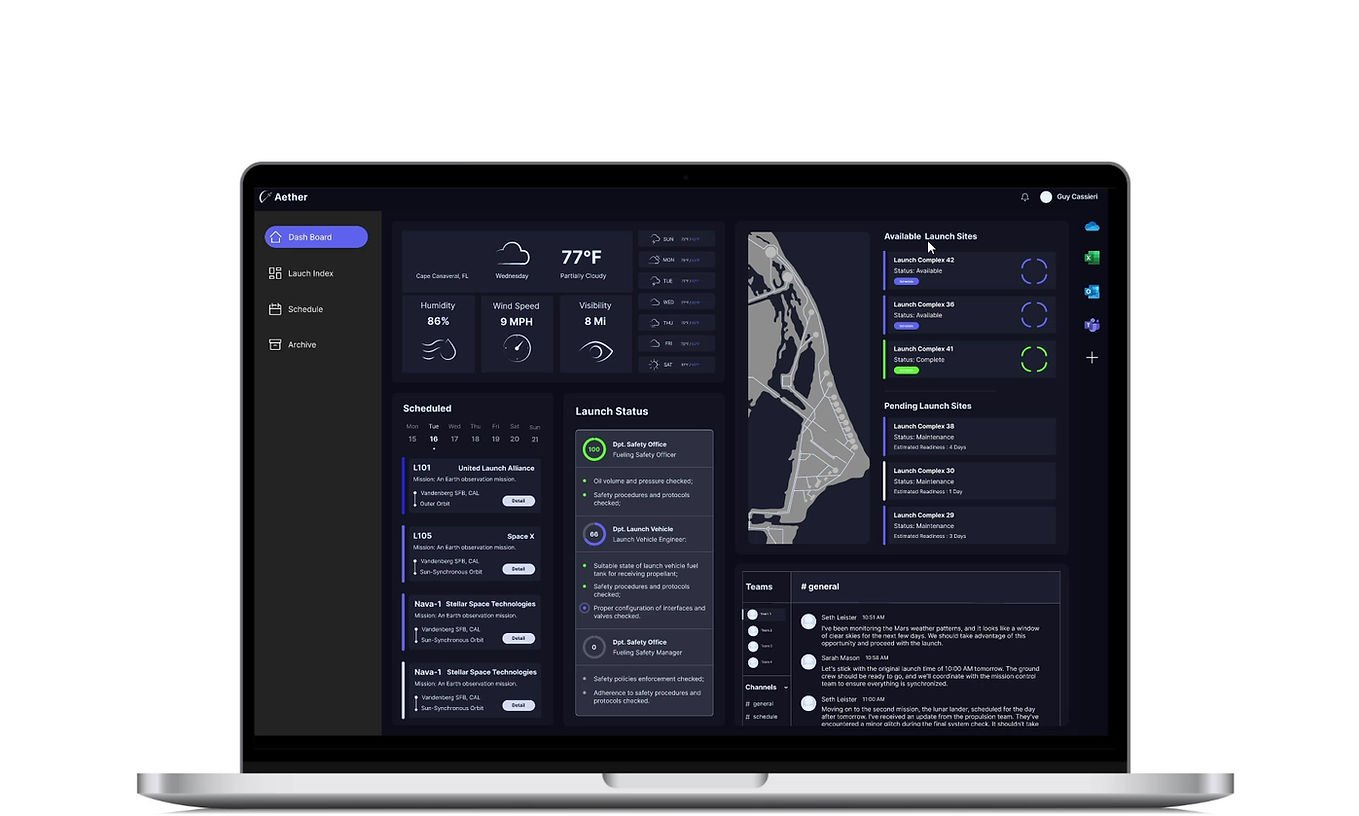
Every launch pad is listed on the left and tells personnel on the status of each launch site. This uses the requirements for every location including the grace period needed between uses.
-
Quantum computing helps determine which location to use to have the most amount of launches.
-
The map at the middle shows the different locations and allows for the user to interact that way as well for more information about each site. Currently has only Cape Canaveral, but will allow for multiple sites as the software and need grows.
-
At the top right is the history of the pads, which can tell why a launch site may be unavailable.
-
Below is the schedule for that launch pad, similar to the scheduling page.
Launch Site Status

Risk Assessment
-
Risk assessment has three categories: weather risks, ecological risks, and technological risks.
-
Green means there is negligible risk, red is for immediate/urgent risk to be addressed, and blue indicated possible risk that could benefit from a schedule change to minimize risk.
-
The quantum computing allows for suggestions based on information obtained through launch history.
Screens In Action:


The Scheduler
This software's goal is to accommodate growth, specifically in the number of launches per day. We chose to focus on four main users and how to best help them achieve this goal based on interviews and research we conducted. It was important that the system was modular to personalize the user flow for each job requirement. Below are a few possible flows from this software.

The Requirements Coordinator
The Executive

The Tech/Operations Coordinator

Presentations: